What to Do If Your Smart TV Won’t Connect to Wi-Fi
You sit down, popcorn ready, and the little Wi-Fi icon on your smart TV is spinning. Or worse, it shows a sad little exclamation mark. Your phone connects fine, your laptop is streaming in the next room, and yet the TV refuses to join the network. It is infuriating, and it always seems to happen ri…
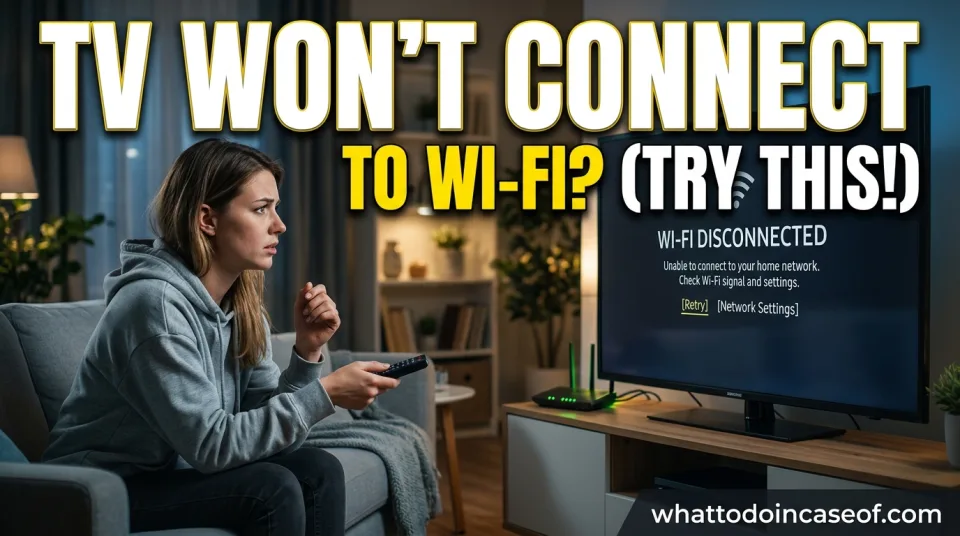
You sit down, popcorn ready, and the little Wi-Fi icon on your smart TV is spinning. Or worse, it shows a sad little exclamation mark. Your phone connects fine, your laptop is streaming in the next room, and yet the TV refuses to join the network. It is infuriating, and it always seems to happen right when you have settled in for the evening.
Here is the good news: most smart TV Wi-Fi problems are fixable in under ten minutes, and you probably do not need a new TV or a technician. This guide walks you through why it happens, what your real options are, and the exact order to try them so you stop guessing. We will cover smart TV Wi-Fi fixes, TV troubleshooting basics, and a few streaming tips that make the whole setup more reliable long term.
The Problem: Why Does This Always Happen at the Worst Time?
A smart TV is a computer with a screen. It has a Wi-Fi chip, a processor, and software that needs updating, just like your phone. When any of those pieces misbehave, the TV drops off the network or refuses to connect in the first place.
The annoying part is that TVs are often the worst-behaved device on your home network. They sit far from the router, they run older Wi-Fi hardware than your phone, and they get fewer software updates. So when the network changes even slightly, the TV is usually the first thing to notice.
The most common mistake people make is jumping straight to "the TV is broken" and either buying a new one or calling someone out. The second most common mistake is fiddling with the router settings before trying the simple stuff, like a proper restart. Start small.
Why It Happens: The Real Causes, in Plain English
Think of your Wi-Fi as a conversation between two people. Sometimes one of them is talking too quietly, sometimes they are speaking different languages, and sometimes the room is just too crowded.
Weak signal is the classic culprit. Walls, distance, and even a fish tank between the TV and router can weaken the signal to the point where the TV sees the network but cannot hold a stable connection. Your phone may cope; the TV may not.
A router or TV that just needs a reboot is surprisingly common. Memory fills up, small software glitches pile up, and a full power cycle clears them. This is the fix that works more often than people expect.
Wrong password or a changed network name catches people out after a router reset or a provider change. The TV keeps trying to connect to a network that no longer exists under that name.
Outdated TV firmware can break compatibility with newer routers. If the TV has not updated in a year or two, this becomes more likely.
Too many devices or a 2.4 GHz versus 5 GHz mismatch matters more than most people realise. Many smart TVs only support the 2.4 GHz band, and if your router hides or splits those networks, the TV may not find the right one.
The Solutions: Your Realistic Options
Option 1: The full power cycle (free, fast, try this first)
Unplug the TV from the wall, not just the remote. Wait about a minute, plug it back in, and let it boot fully. Do the same for your router if you can reach it easily. This clears temporary glitches in both devices.
The advantage is obvious: it costs nothing and takes two minutes. The disadvantage is it will not fix a genuine hardware or signal problem. Try it first every single time.
Option 2: Reconnect to the network from scratch
On the TV, go into Settings, find Network or Wi-Fi, and forget the current network. Then reconnect and re-enter the password carefully. This fixes wrong passwords, stale connection data, and networks that changed names.
It takes a few minutes and is free. The catch is you need the current password to hand, and if someone else set up the router, you may need to ask them.
Option 3: Move the TV or the router closer together
If the TV is in a far corner and the router is at the other end of the house, distance and walls are likely your problem. Moving either device, even a metre or two, or lifting the router off the floor, can make a real difference.
This is free but not always practical. Nobody wants to rearrange a living room around a router. If moving things is not realistic, skip to the next option.
Option 4: Use a Wi-Fi extender or mesh system
An extender rebroadcasts your Wi-Fi closer to the TV. A mesh system uses several units around the home to create one stronger network. Both are widely available and prices vary a lot by brand and coverage, so check current listings rather than trusting a single figure.
The advantage is a stronger, more stable signal for the TV and everything else nearby. The disadvantage is cost and a bit of setup, and cheap extenders can sometimes slow speeds. This makes sense if the TV is far from the router and other devices struggle too.
Option 5: Connect with an Ethernet cable
A cable from the router to the TV is the most reliable connection you can get. No dropouts, no interference, no password drama. Many people never consider it because the TV is across the room, but flat cables and cable covers make it less ugly than you would think.
It is cheap and rock solid, but only works if the TV has an Ethernet port and the router is reachable. Some newer TVs have dropped the port, so check the back of yours first.
Option 6: Update the TV’s software
Go into the TV settings and look for a software or firmware update. If the TV cannot get online to download it, some brands let you update via a USB stick from a computer. Check your TV maker's support page for the exact steps.
This is free and fixes compatibility bugs, but it can take a while and occasionally a botched update causes new headaches. Do it when you have time to spare.
Option 7: Reset the TV to factory settings (last resort)
This wipes your apps and settings and starts fresh. It fixes stubborn software problems that nothing else touches. The downside is you lose your logins and have to set everything up again, so save it for last.
The Best Choice: Which Fix Fits Your Situation?
There is no single answer here, because the right move depends on what is actually wrong.
If the TV worked yesterday and stopped today, start with the power cycle and reconnect. That solves most cases and costs nothing.
If the TV has never connected since you moved it or changed providers, it is probably a password or network-name problem, or a 2.4 GHz versus 5 GHz mismatch.
If the TV is far from the router and the signal is weak, an extender, mesh system, or Ethernet cable is the real fix. No amount of restarting will beat physics.
If the TV is old and has not updated in years, check for firmware first. If it still fails, the Wi-Fi hardware inside may simply be worn out, and a streaming stick plugged into the HDMI port is often cheaper than a new TV.
Step-by-Step Action Plan
Work through this in order and stop as soon as it works.
- Unplug the TV from the wall for one minute, plug it back in, and let it fully start.
- Do the same with your router if you can reach it safely.
- On the TV, go to network settings, forget the Wi-Fi network, then reconnect with the password typed carefully.
- Check the network name and password on another device to confirm they are correct.
- Look at the TV's signal strength indicator. If it is weak, move the router or TV, or plan for an extender.
- Check for a TV software update, using USB if the TV cannot get online.
- Try an Ethernet cable if your TV has the port. It is the fastest way to confirm the TV itself is fine.
- If nothing works, a factory reset is the last software step before you consider hardware.
- Still stuck? A cheap streaming stick can bypass the TV's built-in Wi-Fi entirely, and our practical guides cover similar fix-it situations step by step.
If you are setting this up for a family room and want to keep things simple for everyone, the kids and family safety section has useful pointers on managing devices and screen time at home.
Common Mistakes to Avoid
Only pressing the remote's power button. That puts the TV to sleep, not off. Fix: unplug it from the wall for a full reset.
Typing the password on the TV remote in a hurry. It is easy to get one character wrong. Fix: type slowly, or use the TV app if your brand offers one.
Restarting the router by yanking the cable mid-use. That can corrupt settings. Fix: use the router's power button or app, or unplug it cleanly and wait.
Ignoring the 2.4 GHz versus 5 GHz split. Many TVs only see one band. Fix: check your router settings and make sure the 2.4 GHz network is visible.
Buying a new TV before trying a streaming stick. The TV's screen is probably fine. Fix: test a cheap stick first.
Skipping software updates for years. Old firmware causes new connection bugs. Fix: check for updates every few months.
Placing the router on the floor behind furniture. That kills signal. Fix: lift it up and keep it out in the open.
Expert Takeaway
The single most important lesson: start with the free, boring fixes before you spend a penny. A full power cycle and a clean reconnect solve the majority of smart TV Wi-Fi problems, and they take less time than reading this sentence twice. Only reach for new hardware once you have confirmed the TV itself is fine and the signal is genuinely weak.
FAQ
Why won't my smart TV connect to Wi-Fi when my phone works fine?
Your phone has newer Wi-Fi hardware and may be connecting to a different band or a stronger signal. The TV is often further away and less tolerant of weak signal or network changes. Try a power cycle and reconnect first, then check signal strength near the TV.
How do I know if my TV needs 2.4 GHz or 5 GHz Wi-Fi?
Most smart TVs, especially older ones, only support 2.4 GHz. Check your TV's manual or the maker's support page. If your router hides the 2.4 GHz network, the TV may not find it at all.
Can I fix a smart TV Wi-Fi problem without a technician?
Usually, yes. Power cycles, reconnecting, moving the router, and checking for updates fix most cases. Only call a professional if the TV's Wi-Fi hardware appears faulty and a streaming stick does not solve it.
Is it worth buying a Wi-Fi extender for my TV?
Only if the TV is far from the router and other devices nearby also struggle. If the TV is close and still failing, an extender will not help. If you need a local installer, the trusted provider directory can point you to someone nearby.
Will resetting my TV to factory settings fix the Wi-Fi?
Sometimes, yes, if the problem is a software glitch. But you will lose your apps and logins, so try every other step first. It is the last software fix before you consider the hardware.
This article is general information, not a substitute for professional advice. If a device or cable looks damaged or smells of burning, stop and seek qualified help.
Written by
Priya Raman
Travel writer helping readers handle lost documents, delays and unexpected problems abroad.
View profileSpotted an error? Report it — we correct mistakes promptly.
Keep reading
Related articles

What to Do If Your Phone Gets Extremely Hot
Your phone is warm in your hand, then uncomfortably hot. Maybe you just unplugged it, maybe you're gaming, maybe it's sitting in the sun doing nothing at all. Either way, that heat is not normal, and your gut is right to worry.

What to Do If Your Wi-Fi Is Slow at Home - 8 Easy Fixes to Get Faster Internet
Your video call freezes mid-sentence. A page that used to load instantly now spins for ten seconds. Someone in the next room is streaming, and suddenly your download crawls. If this sounds familiar, you are not alone, and you are not stuck with it.

Can I Move to Canada Without a Job Offer?
Yes, you can move to Canada without a job offer. Discover the realistic pathways — Express Entry, Provincial Nominee Programs, study permits, and more — with a step-by-step action plan.
Related guides
What to Do if You Lose All Your Data
Discover immediate, safe steps to recover lost files and prevent permanent data loss across your devices and storage drives.
What to Do If Your Smart Home Devices Are Hacked?
If your smart home devices are hacked, you need to act quickly to secure your network and personal data. Follow these steps to regain control.
What should you do if you are being bullied at school?
Bullying is never your fault. Learn safe, practical steps to stop it and get support from trusted adults.